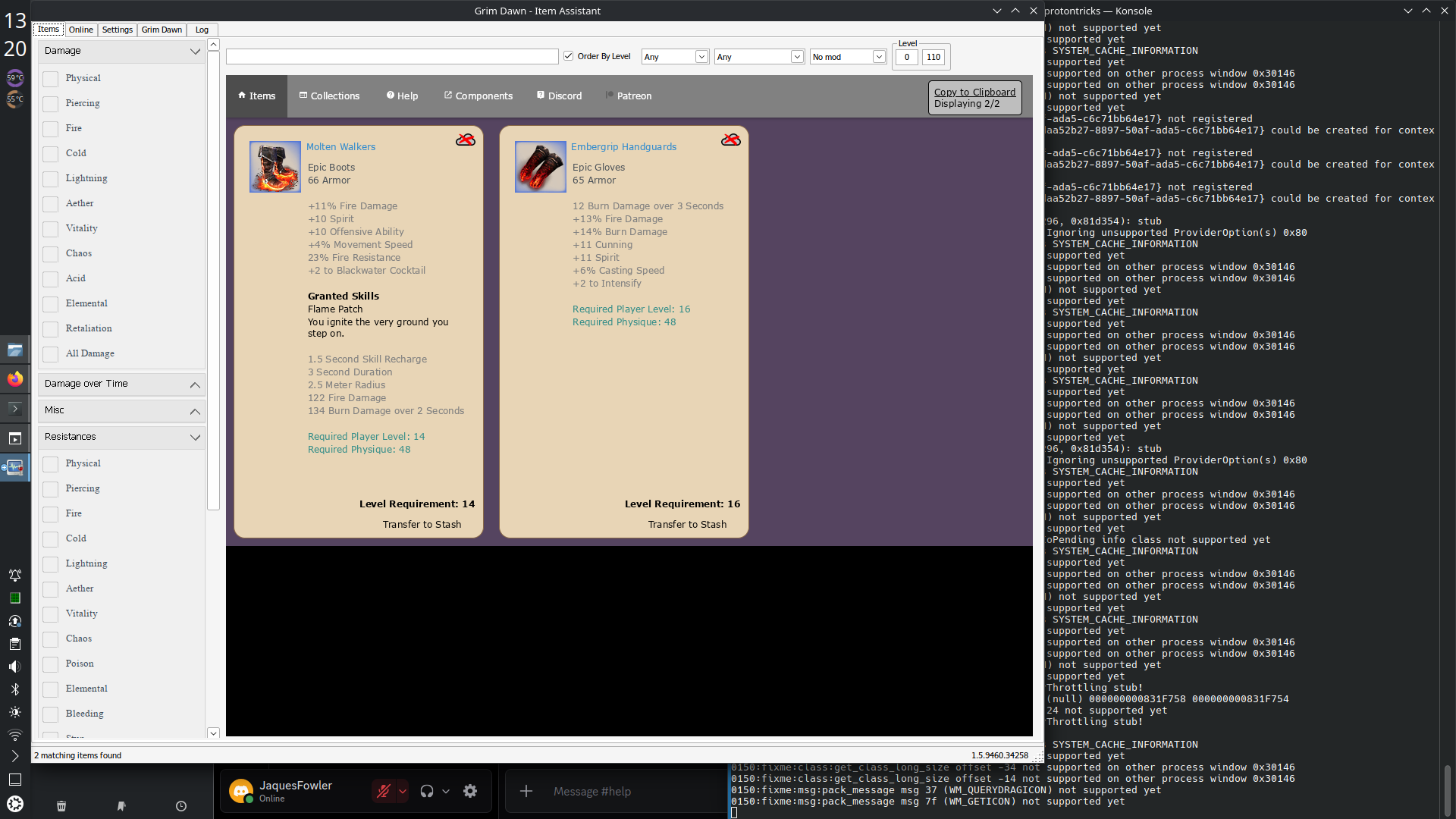
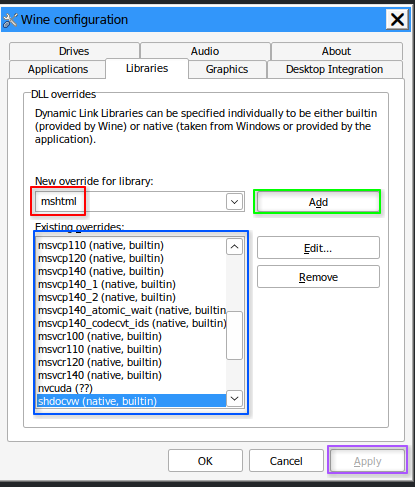
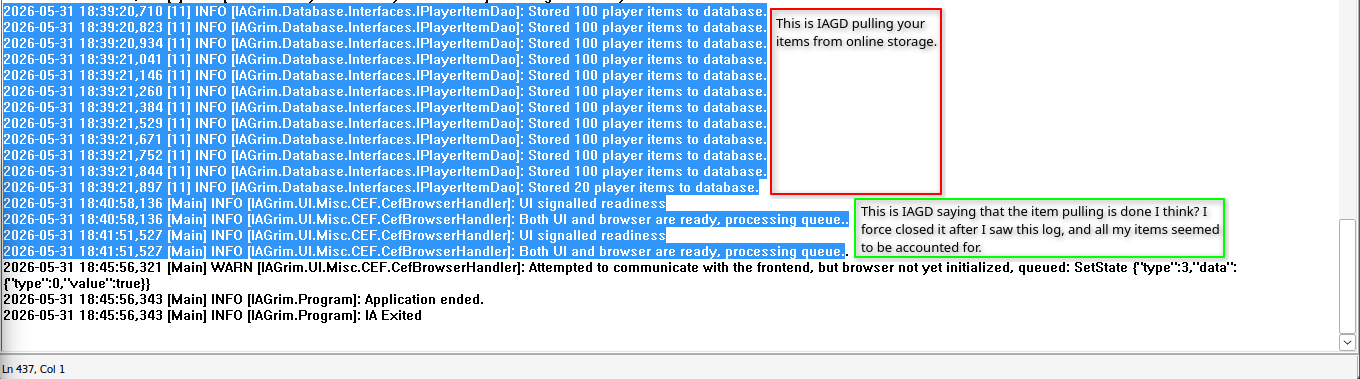
Due to changes in version of this and that, GDIA on Linux had to be re-troublelshot and this is the short revised guide. I will rewrite the whole guide as soon as I can. But as of the date of the edit, day of / after Grim Misadventures 201, this works.

OLD GUIDE, But useful context: Introductory note
Hey all, I hope this one helps out to whoever needs it. Before we start, please keep in mind my understanding of Wine’s inner-workings is limited to non-existent, so don’t take this guide as an authority, but more as a functional starting point from which much smarter people than I can optimize it better.
Here’s an overview of what we’re doing.
(feel free to correct any ignorance on my part)
Windows apps on Linux run through a translation layer Wine(Proton). This layer, from what I understand, mimics the windows Userspace, which is why you can’t just run your drivers on wine and never boot up windows again. Under Wine / Proton’s hood is a lot of magic that I’m not currently capable of comprehending, but what’s for us on top is the so called wine prefix. As far as I understand, each prefix is its own Windows userspace, this is where you install your applications, these application have certain dependencies, I will not go into that Software Development rabbit hole here. No matter if you’re on Windows natively or just pretending to be Windows, if your application’s dependencies aren’t installed your program will either not run, run badly or in IA’s case open but display a black screen.
The other specific thing here is that IA has to latch on to Grim Dawn to function, first so it can load the database and second so it can Store and Transfer items.
System/Wine info:
Distro: Kubuntu 25.10
Store/Platform: Steam The official .deb from the website
Wine: Proton Experimental (but you can try them all)
Dependencies:
(Download these and put them in the same folder as Item Assistant’s installer for convenience)
- WebView2 Runtime: Microsoft Edge WebView2 | Microsoft Edge Developer
Choose the x64 - Edge: (only somewhat optional) Download Microsoft Edge: Windows, macOS, iOS & Android
- VS 2013 (x86): https://www.microsoft.com/en-us/download/details.aspx?id=40784
- .Net 10, no link, Item Assistant will give you one.
Note: We are working within Proton, so it is as if we’re in Windows, therefore always be careful to download the Windows version of the dependencies.
Instructions:
Assuming you have Grim Dawn (steam) installed:
- Install protontricks
(this will allow us to modify the environment or prefix and install IA where Grim Dawn is installed)
Generally, if your steam is from flatpak, install the flatpak protontricks, if it’s from .deb or your system’s repository, install protontricks from there. Since we’re not running dangerous software here I personally went for the .deb steam client from the website and a system repo protontricks, that being said it wouldn’t find any Proton version so I followed Teadrinker’s 3 steps in the second comment here: https://forums.linuxmint.com/viewtopic.php?t=434114
pipx yells about a path and you can run a command to add protontricks to it, restart and then you’ll be able to type “protontricks” in the Terminal and it will launch. Alternatively, you can just type “pipx run protontricks” - and make an alias to shorten it.
- On the first window “Select Steam App:” choose Grim Dawn, this is crucial since every game on steam has its own wine prefix and therefore separate system.
I personally got several error messages here, but I just ‘ok’-ed pass them. - “Select the default wine prefix”
- When I say install from here on, I refer to the option “Run an Arbitrary Executable”
- Install Grim Dawn Item Assistant, either before the end of the installation or after it (and selecting launch) it will prompt you for that .net 10 - press yes, it will open a browser and download it, install it via the “Run an Arbitrary Executable”.
- You can “run explorer” and search for IAGD’s folder in Program Files where you can start it. You’ll get the VS 2013 (x86) message so you:
- Install VS 2013 (x86)
- Launch it again, now you’ll have almost everything working besides the Item Area, that’s where our next focus will be.
Note: I’ve not tested this, but the Edge browser by default, installs WebView2 along side itself and a bunch of other additions. Theoretically then, you can just install Edge itself and be done with it. You’ll most likely be fine and that’s probably the much smarter approach. I personally installed WebView2 Runtime first, and then installed Edge which somewhat helped with stability of the UI and stopped the WebView2 runtime from making funny folders all over the place (funny because they’re named edge bit)
I may do an install on a second machine and attempt to go Edge only, if I do I’ll leave an edit here.
- Install WebView2, be patient with it, it starts slow and the install takes a few minutes.
- Install Edge
Running Item Assistant
Here’s how I prefer to do it.
One-time Setup:
- “Run winecfg” under Applications > Windows version either pick Windows 7 or 11, though you’re free to experiment.
- While you’re here something weird that stabilized the UI glitching from time to time for me was going in Graphics > Window Setting and disabling everything, then selecting Emulate Virtual Desktop, with, say, 1280x1024. Then you “Run taskmgr”, New Task (browse your way to the GDIA .exe) run it, close it and close the task manager. Run winecfg again back to Graphics > Window Settings and now enable everything but the last option (disable Emulate Virtual Desktop).
Using Item Assistant:
- Open protontricks (if it isn’t open already)
- Open Steam and launch Grim Dawn
- In protontricks start Item Assistant, I prefer starting it through the Task Manager ( “Run taskmgr”) so I can keep an eye on the Edge/WebView2 processes, sometimes they bug out and kill IA’s UI, but you can “End Task” everything and then New Task IA again.
First Launch:
- The usual, go to Grim Dawn, if Grim Dawn is running as it should be, IA will have already detected it, due to exisitng in the same prefix, you will in fact see both Grim Dawn and Item Assistant running in the Task Manager.
- Close GD, Load Database - and you’re done!
Subsequent launches:
- Just make sure both GD and IA are running simultaneously.
Bonus: In KDE, if you minimize IA it minimizes into the taskbar like it does on native Windows, so does the task manager so be careful to not have 5 open.
For GoG, do the exact same things, just install the dependencies via whatever launcher you’re using - Bottles, Lutris, Heroic etc. I don’t know exactly how Lutris and Heroic do things, but as long as you’re installing everything in the same prefix and launching both the game and Item Assistant from the same prefix, you should be set!
Cheers everybody and I hope for much more qualified people than myself to add to this.
The pudding where the proof is: