gdx1 is the aom files for the game.
gdx2 is the fg files for the game.
You do nothing with these folders. Your only concern should be unzipping the contents of the download directly into the mods folder in GD’s installation directory. From there you create a custom game and a new character.
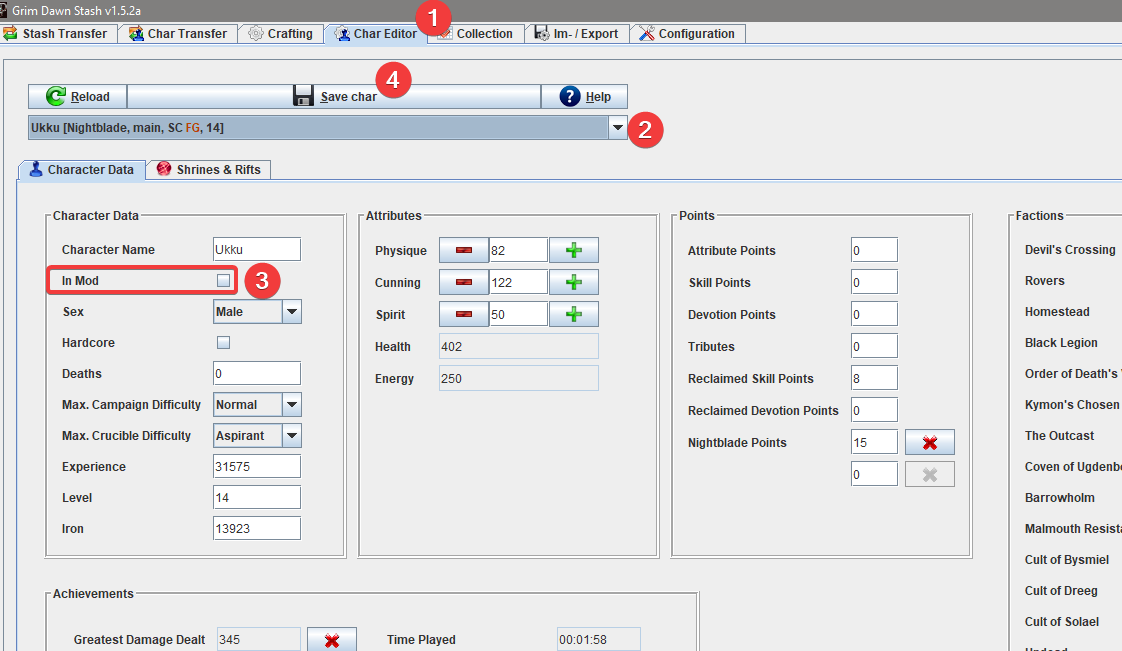
To MOVE characters PROPERLY from Main Campaign to a Custom Game you need to edit the save files WITH GDStash. If you don’t do this you will indeed beginning noticing issues and inconsistencies occurring with these save files between both game modes.
The In Mod box needs to be ticked and then the Save char button pressed…
Custom games furthermore create extra folders where you need to move your characters too.
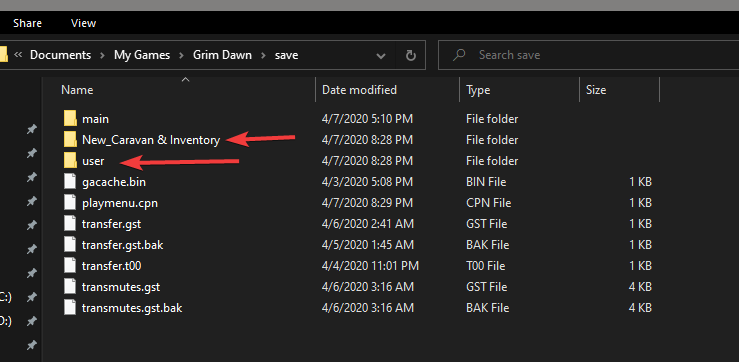
As you can see here the mod creates a folder for itself (this is where stash files and blueprint files and the like are stored). Custom games also create the user folder where all created custom game characters save files/folders get placed. If you convert a character to be a “mod” character in GDStash this is where you would place your converted characters save folder.
The user folder gets created the moment you first ever create a Custom character. The folder bearing the name of whichever mods you have installed gets created the moment you first ever log fully into the game world with an active Custom mod with one of your characters.
NOTE: if you are using mods you should have cloudsaving completely disabled for best results to minimize issues and to gain complete control of your files. You should be completely on local saving.