Doesn’t Process Lasso accomplish this task already? (not to diminish your work good sir)
https://bitsum.com/ (it’s free)
Doesn’t Process Lasso accomplish this task already? (not to diminish your work good sir)
https://bitsum.com/ (it’s free)
Indeed it does very similar stuff (and a whole lot more) and I mentioned it earlier in this thread actually.
The reason I don’t use it is because during my testing of it I noticed that it was frequently toggling my cores off and on WHILE playing, and so I said fuck it and made my own tool.
Otherwise, if it had worked correctly and to my liking I would have just kept on using that instead 
Which is fine by me tho since it was interesting to learn how to toggle cores on processes via autohotkey and powershell etc.
Just wanted to post a follow-up and say: “Holy cr*p!! This totally works better than Processor Lasso! (and it’s so simple to run)”
Mad props to you sir!
** Highly recommended and whole-heartidly endorsed **
Glad to hear that you got improvements on not just one but two machines. Very nice since the trick doesn’t work with every CPU type.
I’ve been considering going thru the thread and perhaps compiling lists of CPU’s that have shown to work good and those that don’t or that might need slightly different workarounds - and then adding it to the OP. We shall see and thanks for reporting your experience and CPU’s.
I’ve made a small bash script that you can run after opening the game. The script disables the first core from the game, and that helps a lot for me. I have 6 cores so the scripts is set for that but you can change the value to your system.
#!/bin/bash
taskset -pac 1,2,3,4,5 $(pgrep “Grim Dawn”)
save this into a file, then give it execute permission.
sudo chmod +x grim.sh
call the script whenever you need it or double click it.
You can get your core count with
echo $(($(nproc --all) / 2))
I just could not insert this info to the settings to make the script dynamic to users cpu yet.
Just curious but you haven’t actually tested your script by launching thru the console yet have you? The taskset command needs any given processes pid number to work (you can acquire this via the pidof command).
As a result, since you are lacking the pid, your script fails with 2 errors in the console:
pgrep: only one pattern can be provided
Try `pgrep --help' for more information.
taskset: invalid PID argument: '1,2,3,4,5'
Try your script like this instead:
getgdpid="$(pidof 'Grim Dawn.exe')"
taskset -pac 1,2,3,4,5 "${getgdpid}"
Fire that up via the console and see the result you get now.
https://www.howtoforge.com/linux-taskset-command/
https://www.howtoforge.com/linux-pidof-command/
Edit: Weird. I just realized after some more fiddling with your code that it appears to be a copy and paste issue with the quotations around "Grim Dawn". Once I edit your quotations, basically redoing them in my text editor, it somehow fixes itself and begins working as it should. I guess you don’t need the pid after all
Perhaps it’s a copy/paste issue because your code was in the forums normal quote tags instead of code tags, like this:
taskset -pac 1,2,3,4,5 $(pgrep "Grim Dawn")
Found the way to use variables as an option for taskset. Problem was the string had an newline at the end so I removed it. Made into a script, and attached to the game with steam launch options and so far it works.
#!/bin/bash
x=$(seq -s , 1 $(($(nproc --all) -1)))
while [[ $(pgrep “Grim Dawn”) == “” ]]
do
echo “Game not running yet…”
sleep 3
doneif [[ $(pgrep “Grim Dawn”) != “” ]]; then
sleep 20
echo “Gonna use there cores/threads: ${x//[$’\t\r\n’]}”
echo “Game pid is: $(pgrep “Grim Dawn”)”
pgrep “Grim Dawn” && taskset -pac “${x//[$’\t\r\n’]}” $(pgrep “Grim Dawn”)
#pgrep “Grim Dawn” && taskset -pac 1,2,3,4,5 $(pgrep “Grim Dawn”)
fi
This is the script but the quotations might mess up so I’ll put it as file as well.
grim.zip (371 Bytes)
Give it execute permission. then attach it to the game. Go Properties of the game. Select “Set Launch Options”. Add this:
~/grim.sh & %command%
if you have another command, put "; " before the new one.
The command waits to find if game is running. It checks every 3 seconds.
Once it grabs the pid, it waits 20 seconds then runs the code. This one enables all cores but the first(actually first thread).
Since you have so many cores/threads I did not see the reason to give it back to the game but if you want it use the same logic on if part and manually select all cores/threads after the “-pac” option.
I hope this will work on you too!
20 seconds was enough for my system to get into the game, run on first thread, then realize its forbidden, and finally change its settings.
Edit: Changed the steam settings command, added & otherwise game would not launch. I could not chain commands on steam after restarting my system.
You could also just bind the .sh file to a global hotkey of your choosing in your distro’s settings. I detail how to do it for Manjaro in the Linux section of the thread OP above. I imagine it is similar across most distros.
amazing, this thread deserves more attention (particularly developers). never know that grim dawn overloads core 0 until reading this thread. I wonder why they keep this reversed-optimization.
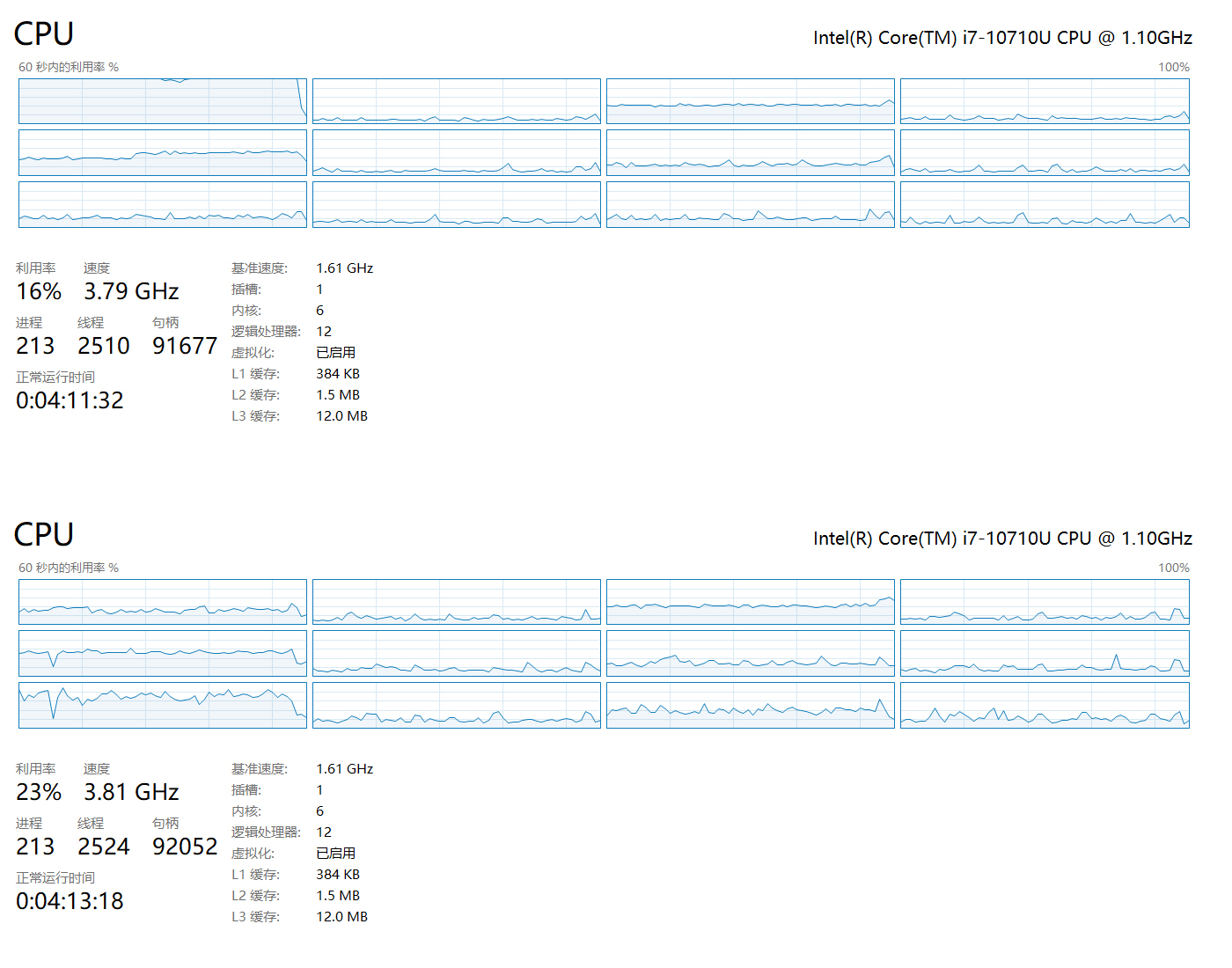
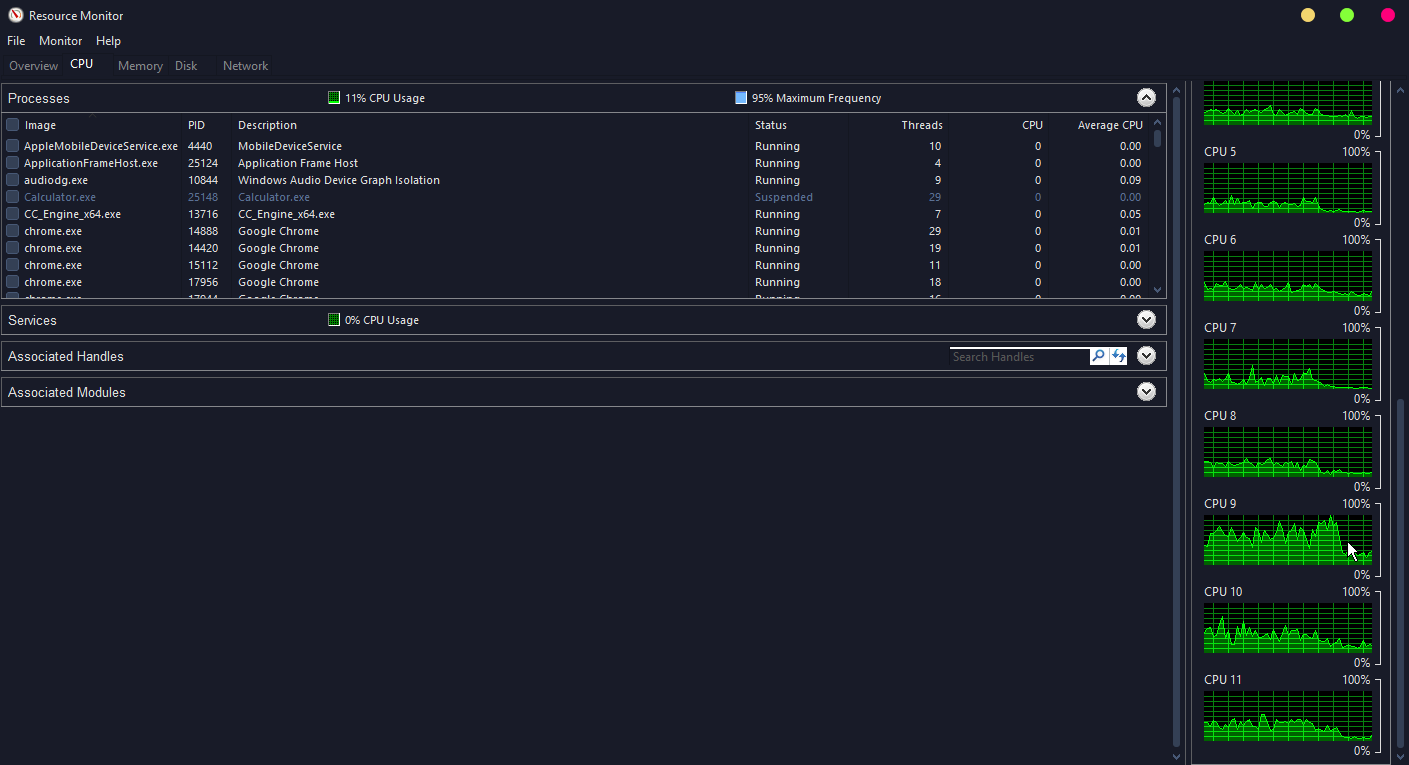
The tool works perfectly for my 10th gen 10710U, getting load evenly distributed on 6 physical cores.
This is a very useful tool. I didn’t realize one core took a beating taking the brunt of the load. I did try the default program and it seemed to work ok. One core, I think core 2, got the lion’s share often get between 55-92%, but it never capped off, the other cores were going from low single digits to 30%. So not the most even spread.
I did some fooling around, and the best combo I found was to disable Core 0,1,and 3, strangely enough. Once all were re-enabled, Core 2 got the most, obviously, but tends to hover around 60% very rarely going above 75% while the other cores hover more evenly with their share. Haven’t found a combo that does super even spread.
Regardless of which one I used, it seemed to be the same performance. I gained a few extra fps while also turning on some extra effects again which had been off long time ago. So getting those fancy effects and a few extra fps on top of that is nice. I’m curious if getting a custom one for me disabling 0, 1, and 3 is ideal, assuming it’s safe (is it safe to disable all but one core briefly)? Seems to work ok I guess. 
Glad to hear my tool has helped improve performance
I don’t have my development environment fully set back up yet (re-installed Windows) but I’ll try to get you a custom one together in the next day or two. What is your CPU btw?
I’ve never seen any adverse affects to date and on a logical level I can’t imagine anything that would make it “not safe”. The only possible scenario that might cause oddities would be if the program/game decided to go full bore all of a sudden on that one core during that brief time-frame, so… highly unlikely.
Awesome. Take your time. And I’m running an ancient i5 2400 quad core lol
That’s good to hear. I’ve never disabled cores before so I a bit hesitant at first. And it was just weird how I found disabling all but one for a few seconds helped spread it out more evenly, even if it’s not perfect (I didn’t go through all the permutations).
You’re telling me I, too, was very surprised when I accidentally noticed the behavior (which ended up leading to the creation of Core Switcher). Why it works, I dunno but even more confusing is that it doesn’t work for all CPU’s and the ones it does work on, some spread out almost perfectly evenly and others are more like yours where it spreads out but not so evenly.
Either way, I think it comes in handy for most CPU’s in regards to GD/TQ, at the very least.
Just wanted to drop a line to say thanks and that this tool is working on my new rig. AMD Ryzen 5 3600 6-Core.
I didn’t need this before on my humble dual core i3. In fact I had always used the “force core affinity” tool before.
But with the new setup, your tool was sorely needed as poor Core 0 was getting hammered. I thought the tool was busted at first, but I had to Run as Administrator to make it accept the hotkeys. Now all cores are taking a share. 
I wanna say a BIG ThankYou to the creator of this tool. It’s light, handy and it works!
I tried some other tools (or tricks) before, none of them helped me.
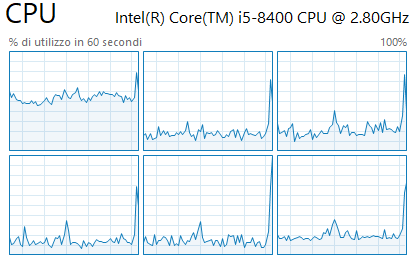
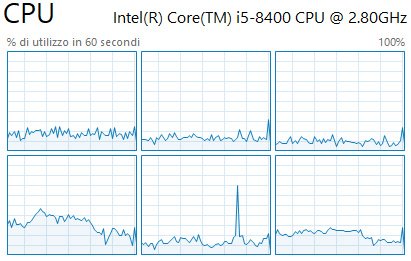
Although I own a relatively modern i5 8400, I still had constant micro stuttering even with 60-59 FPS (graphic settings maxed out).
Now it’s finally gone! I wanna say that it works for me, so other players could try it and get benefits.
I hope this tool gets the visibility it deserves!!
Now 2 screenshots to show before and after.
Cheers!
CPU runs cooler and quieter.
Is possible to hex edit this just like with cp2077? Or GD’s engine is far complicated? 
Ah that type of stuff is well beyond me as I’ve never messed with anything like that so I wouldn’t be able to give any kind of definitive answer on that.
I have actually been wondering if the Core Switcher could help with CP2077 instead of doing a hex edit. Not got around to try it though.
Well, if you want here is the source ahk file for core switcher: windows_core_switcher.zip (2.3 KB)
You’d have to change all instances of Grim Dawn.exe to whatever the cyberpunks exe is named and all instances of Grim Dawn to however cyberpunk is listed in Task Manager - or at least the instance that pertains to how many cores your CPU is rocking.