Grim Dawn Item Assistant on MacOS (Crossover)
A step-by-step guide to getting Item Assistant running on macOS under CrossOver.
I am not a Wine expert — this is simply what I worked out getting it running on my own machine, and what I could verify by testing. Corrections welcome.
Updated October 2026: step 2 now sets a third registry rule. If you followed an earlier version of this guide and have a black item panel, that missing rule is why — see Troubleshooting at the end.
Overview
Item Assistant is a Windows application, so on macOS it runs under CrossOver, a commercial Wine distribution. CrossOver keeps each application in a bottle — a self-contained fake C: drive.
Three separate programs go into one bottle:
- Microsoft Edge WebView2 runtime — draws the item grid
- .NET 10 Desktop Runtime — IAGD will not start without it
- Item Assistant itself
Only the last comes from the IAGD project. The first two are Microsoft runtimes that IAGD checks for and refuses to run without. On a real Windows PC they are usually already installed, which is why Windows users never encounter any of this.
Note: the order matters, and one step cannot be done retrospectively. See step 2.
Tested on
macOS       26.4.1 (Tahoe)
CrossOver   26.3
Hardware    Apple Silicon (M1 Max)
IAGD        1.5.9763.13501
WebView2    109.0.1518.140
.NET        10.0.2 Desktop Runtime (x64)
Grim Dawn   GOG standalone installer (not Galaxy)
Earlier versions of macOS or CrossOver may well work, but I have not tested them and would not recommend them. Intel Macs are untested.
A note on where Grim Dawn came from. Mine is the GOG standalone installer. IAGD locates the game by looking in three places — GOG’s registry entries, Steam’s library list, and a Proton path — so a Steam or GOG Galaxy install should work just as well, the difference being which of those it finds. I have not tried either, and the paths will differ, so if you are on Steam expect the steps to hold but the game path to look different from mine.
The problem this guide exists to solve
Microsoft serves different builds of WebView2 to different Windows versions, and the most current version does not work under Wine. It installs cleanly, reports success, and then displays a permanently blank item grid — the renderer starts but never draws a single frame.
The build that does work is 109.0.1518.140, the last release for Windows 7 and 8. Microsoft still serves it, but only to a client that identifies itself as Windows 7.
So the trick is to tell Microsoft’s installer it is running on Windows 7, which is how you are given the working build. The same has to be done for the runtime itself once it is installed: WebView2 109 draws differently depending on which Windows it believes it is on, and on Windows 10 what it draws never reaches the window — you get Item Assistant’s normal interface with a solid black panel where the items should be, and nothing reports an error.
Both are per-program rules. Nothing else in the bottle is affected, and the bottle itself stays on Windows 10.
Note: the two installer rules have to be in place before WebView2 is installed. Afterwards is too late, and the fix then involves uninstalling it again. The third rule can be set at any time.
Prerequisites
Downloads, in the order you will need them:
- WebView2 Evergreen Bootstrapper (~1.8 MB) — go.microsoft.com/fwlink/p/?LinkId=2124703
It must be the bootstrapper, not the “Evergreen Standalone Installer.” The bootstrapper asks Microsoft which build suits the reported Windows version, which is the whole point. The standalone carries a fixed current payload and ignores it — I tested this, and it installs the broken version regardless.
IAGD’s own missing-runtime message currently recommends the standalone installer. On macOS, do not follow it. - .NET Desktop Runtime 10.0.x, Windows x64 — dotnet.microsoft.com/download/dotnet/10.0
Must be the Desktop runtime and the x64 build. The plain “.NET Runtime” is not enough. - GDItemAssistant.exe — github.com/marius00/iagd/releases
Before you start
Some steps use Terminal. Open one and set two shortcuts so the commands stay readable:
CX=/Applications/CrossOver.app/Contents/SharedSupport/CrossOver/bin
BOTTLE=IAGD
$CX is where CrossOver keeps its command-line tools — the same path on every Mac, copy it exactly. $BOTTLE is your bottle’s name; change IAGD if you call it something else.
Check they took:
echo "$CX" "$BOTTLE"
These last only for the life of that Terminal window.
This guide assumes CrossOver is in the standard location. If you have it on an external drive, adjust the paths to match.
Instructions
1. Create the bottle
A Windows 10 64-bit bottle. It stays Windows 10 throughout — nothing here changes it.
Where to put it is worth a thought:
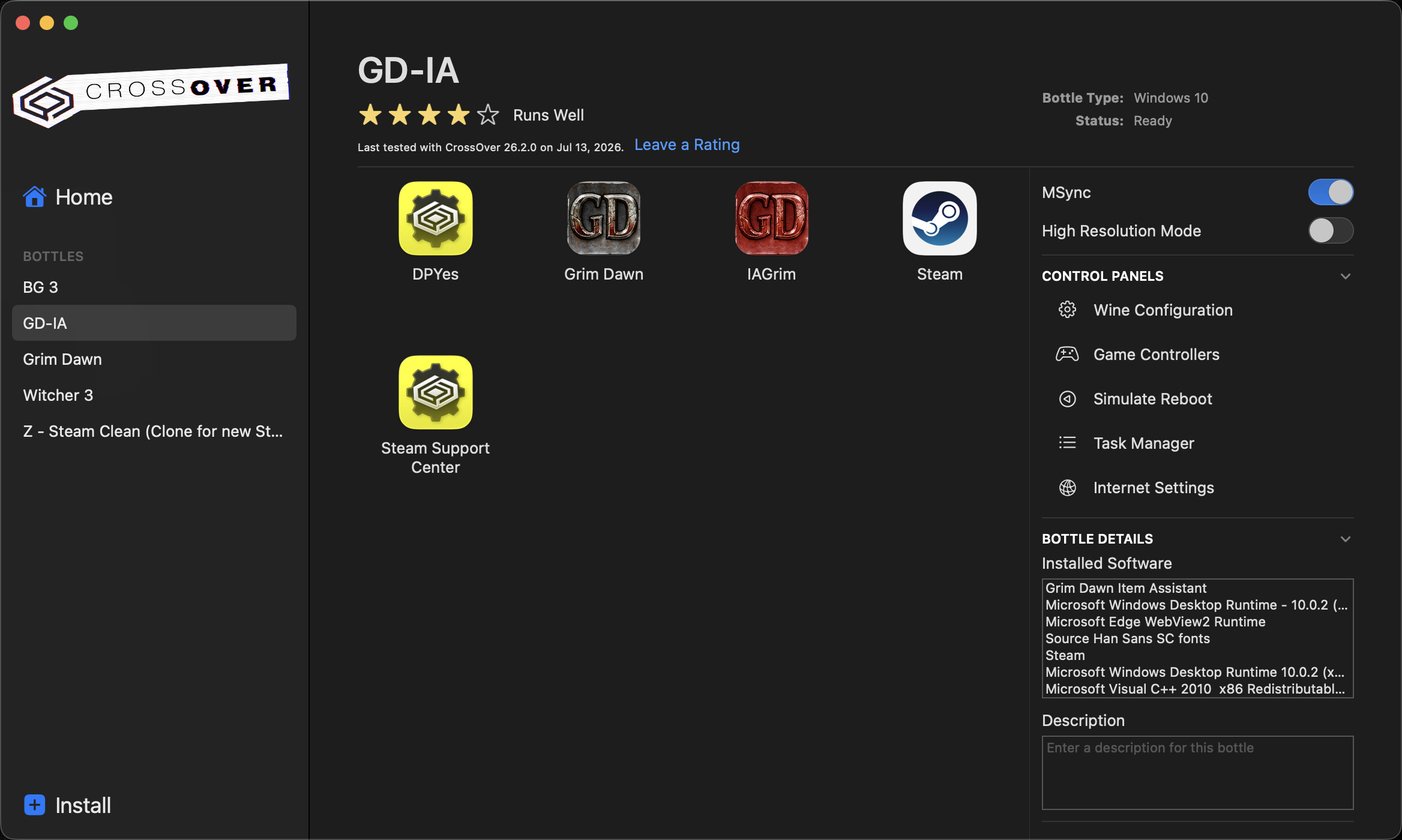
- Inside Grim Dawn’s own bottle — IAGD then detects the game automatically. Simplest, and what I run.
- In a bottle of its own — cleaner separation, but IAGD cannot auto-detect the game and you will set the path by hand at the end. The IAGD hook may not work since GD is in another bottle.
Do not install IAGD yet.
2. Tell Microsoft’s programs they are on Windows 7
Three registry entries. The first two must exist before anything is installed:
"$CX/wine" --bottle "$BOTTLE" reg add 'HKCU\Software\Wine\AppDefaults\MicrosoftEdgeWebview2Setup.exe' /v Version /t REG_SZ /d win7 /f
"$CX/wine" --bottle "$BOTTLE" reg add 'HKCU\Software\Wine\AppDefaults\MicrosoftEdgeUpdate.exe' /v Version /t REG_SZ /d win7 /f
"$CX/wine" --bottle "$BOTTLE" reg add 'HKCU\Software\Wine\AppDefaults\msedgewebview2.exe' /v Version /t REG_SZ /d win7 /f
All three are needed, and they do two different jobs.
The first covers the downloaded stub; the second covers the updater it unpacks and runs, which is the process that actually asks Microsoft which version to fetch. Those two decide which build you are given.
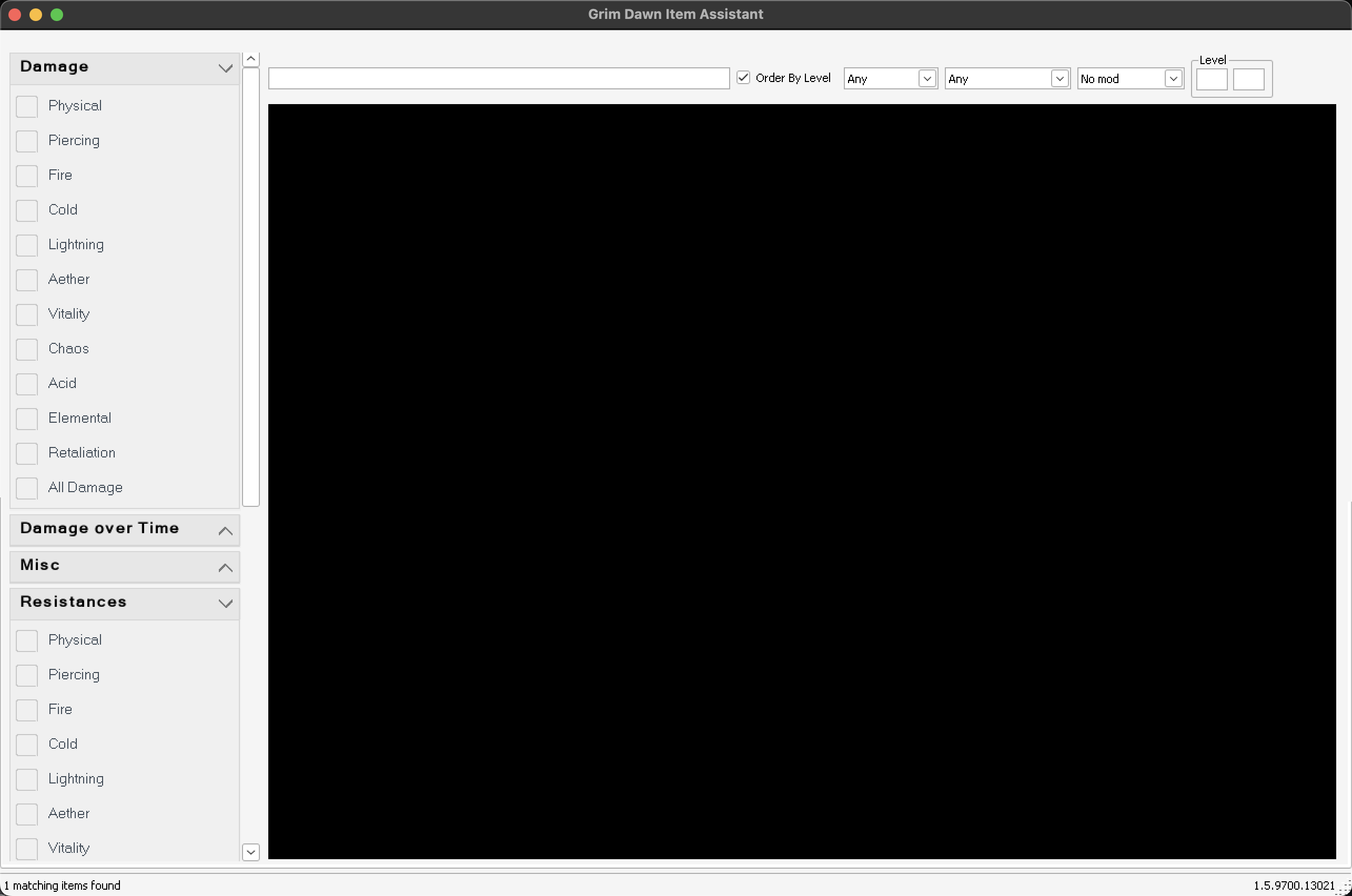
The third is the runtime itself — the process that draws the item grid once everything is installed. It decides whether that build can draw. Without it, Item Assistant starts, finds your items, reports no error anywhere, and shows a solid black panel where the grid should be.
These are Wine AppDefaults rules, matched on a bare filename with no path, so the files need not exist yet. That is also the only thing that could work for the first two — the updater unpacks itself into a randomly named temporary folder each time — and it is why the third can be set here, before the runtime it names has been installed.
Verify:
"$CX/wine" --bottle "$BOTTLE" reg query 'HKCU\Software\Wine\AppDefaults\MicrosoftEdgeWebview2Setup.exe' /v Version
"$CX/wine" --bottle "$BOTTLE" reg query 'HKCU\Software\Wine\AppDefaults\MicrosoftEdgeUpdate.exe' /v Version
"$CX/wine" --bottle "$BOTTLE" reg query 'HKCU\Software\Wine\AppDefaults\msedgewebview2.exe' /v Version
Each should report Version REG_SZ win7.
Note: do not check by opening the bottle’s user.reg — it can look empty, because the registry is held in memory while the bottle runs and only written on shutdown.
Leave these rules in place permanently. The first two affect only Microsoft executables that run during a WebView2 install, and they mean any future re-installation also gets the working version. The third affects only the WebView2 runtime, and it is needed every time Item Assistant runs.
Prefer regedit? Click here
Save this as webview2-win7.reg:
Windows Registry Editor Version 5.00

[HKEY_CURRENT_USER\Software\Wine\AppDefaults\MicrosoftEdgeWebview2Setup.exe]
"Version"="win7"

[HKEY_CURRENT_USER\Software\Wine\AppDefaults\MicrosoftEdgeUpdate.exe]
"Version"="win7"

[HKEY_CURRENT_USER\Software\Wine\AppDefaults\msedgewebview2.exe]
"Version"="win7"
Import it:
"$CX/cxstart" --bottle "$BOTTLE" 'C:\windows\regedit.exe' /S ~/Downloads/webview2-win7.reg
Drop the /S for the import dialog. Or run regedit interactively — in CrossOver, the bottle’s Run Command… → regedit — navigate to HKEY_CURRENT_USER\Software\Wine\AppDefaults, create a key named exactly MicrosoftEdgeWebview2Setup.exe, and inside it a String Value called Version with the data win7. Repeat for MicrosoftEdgeUpdate.exe and for msedgewebview2.exe.
3. Install WebView2
In CrossOver: select the bottle → Run Command… → browse to the bootstrapper → arguments /silent /install → Run.
Or from Terminal, straight from Downloads — no need to copy it into the bottle:
"$CX/cxstart" --bottle "$BOTTLE" ~/Downloads/MicrosoftEdgeWebview2Setup.exe /silent /install
Give it a minute; it pulls down about 140 MB.
Verify before going any further:
"$CX/wine" --bottle "$BOTTLE" reg query 'HKLM\SOFTWARE\WOW6432Node\Microsoft\EdgeUpdate\Clients\{F3017226-FE2A-4295-8BDF-00C3A9A7E4C5}' /v pv
It must report:
pv REG_SZ 109.0.1518.140
Anything higher means step 2 did not take effect. Fix that before continuing — nothing after this will work otherwise.
4. Install the .NET 10 Desktop Runtime
"$CX/cxstart" --bottle "$BOTTLE" ~/Downloads/windowsdesktop-runtime-10.0.2-win-x64.exe /install /quiet /norestart
Adjust the filename to match what you downloaded. Verify:
"$CX/wine" --bottle "$BOTTLE" 'C:\Program Files\dotnet\dotnet.exe' --list-runtimes
Both Microsoft.NETCore.App and Microsoft.WindowsDesktop.App should appear at 10.0.x.
5. Install Item Assistant
"$CX/cxstart" --bottle "$BOTTLE" ~/Downloads/GDItemAssistant.exe
Runs the installer interactively; append /VERYSILENT /SUPPRESSMSGBOXES /NORESTART for a silent install. It lands in C:\Program Files\IAGD and adds a CrossOver menu entry.
6. First run
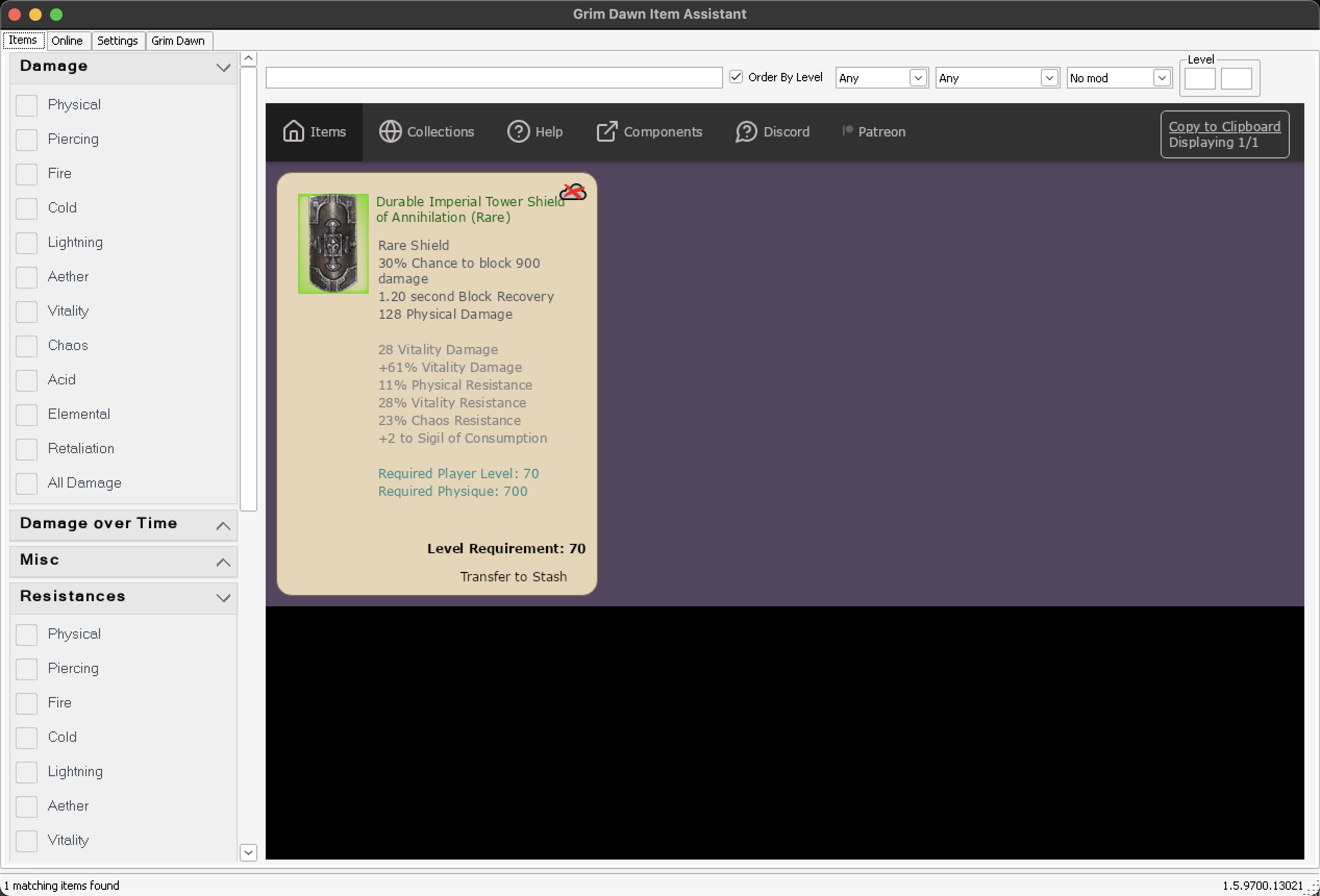
Launch IAGD from CrossOver. The item area should render — a dark page with a navigation bar reading Items / Collections / Help / Components / Discord / Patreon, and a “Getting started” card. It will say No items found, which is correct on a fresh install.
If that panel is solid black instead, the third rule in step 2 is missing — see Troubleshooting below.
Then point it at the game: the Grim Dawn tab → Load Database. If IAGD is in a different bottle from Grim Dawn, set the path by hand.
No environment variables are needed
No WEBVIEW2_* arguments, no --no-sandbox, no DOTNET_* settings. A bottle built this way on CrossOver 26.3 works with none of them.
Older guides list a couple of these. They were genuinely needed on earlier CrossOver releases; they are not any more. This was retested in October 2026 by varying each one on its own against a working install — browser arguments, MSync and the graphics backend included — and none of them affects whether the item grid renders.
What does matter is the third registry rule in step 2, which is not an environment variable. If you already have the old variables configured and everything works, leave well alone.
Troubleshooting
There is a diagnostic script that checks setup and reports if anything is wrong: github.com/GrimDawn-max/gdia-crossover-diagnostic. Run this to either check the setup you have done or you encounter the black panel issue.
A black item panel
Item Assistant opens normally, its filters and search bar draw correctly, the status bar counts your items — and the panel where the grid should be is solid black. Nothing appears in any log; Item Assistant records the renderer starting and navigating successfully, because from its side it did.
That is the msedgewebview2.exe rule in Step 2. Add it, restart Item Assistant, and the grid appears immediately — no reinstall, and nothing else to change.
This was the one step missing from earlier versions of this guide, so if you followed it before October 2026 and have been living with a black panel, that is why. It is also worth knowing what is not the cause: the graphics backend (D3DMetal or Auto), MSync, and the WEBVIEW2_* browser arguments were each tested on their own against a working install, and none of them produces this. Forcing software rendering with the browser arguments hides it rather than fixing it.
IAGD closes instantly with nothing in its log
This affects bottles that existed before a CrossOver upgrade. CrossOver 26.3 added ICU libraries to already-existing bottles, and .NET fails on them before any application code runs — which is why there is no log entry at all.
Check whether the file is there:
ls -l ~/Library/Application\ Support/CrossOver/Bottles/IAGD/drive_c/windows/system32/icu.dll
If it exists, add this to the bottle’s cxbottle.conf, in the [EnvironmentVariables] section, with the bottle shut down:
"DOTNET_SYSTEM_GLOBALIZATION_USENLS" = "1"
Do not use DOTNET_SYSTEM_GLOBALIZATION_INVARIANT instead — it gets past the ICU error and then fails differently, because IAGD asks for en-US explicitly at startup.
Bottles created new under 26.3 have no icu.dll at all and are unaffected.
Wrong WebView2 version installed
The updater will not replace a newer runtime with an older one, so the newer one has to go first. With the bottle shut down:
rm -rf ~/Library/Application\ Support/CrossOver/Bottles/IAGD/drive_c/Program\ Files\ \(x86\)/Microsoft/EdgeWebView

"$CX/wine" --bottle "$BOTTLE" reg delete 'HKLM\SOFTWARE\WOW6432Node\Microsoft\EdgeUpdate\Clients\{F3017226-FE2A-4295-8BDF-00C3A9A7E4C5}' /f
Then confirm the step 2 rules are in place and repeat step 3.
If the newer runtime had actually been run, also delete the browser profile — Chromium refuses to open one written by a newer version:
rm -rf ~/Library/Application\ Support/CrossOver/Bottles/IAGD/drive_c/users/crossover/AppData/Local/EvilSoft/IAGD/edge/EBWebView
Resizing the window can blank the item grid. This is a Wine bug rather than anything to do with the setup — the WebView2 process is killed by an internal Wine assertion and IAGD carries on without noticing, so nothing appears in its log. Restart IAGD to recover. Easiest avoided by leaving the window at a size you like.
Never update WebView2 in this bottle. There is no newer version that works under Wine. In particular, do not run CrossOver’s own “Microsoft Edge WebView2” installer entry, which fetches the current one. The runtime cannot update itself under Wine, so left alone it will stay put.
Happy to answer questions, and if anyone gets this working on an earlier CrossOver or on an Intel Mac I would be glad to hear what you had to change.