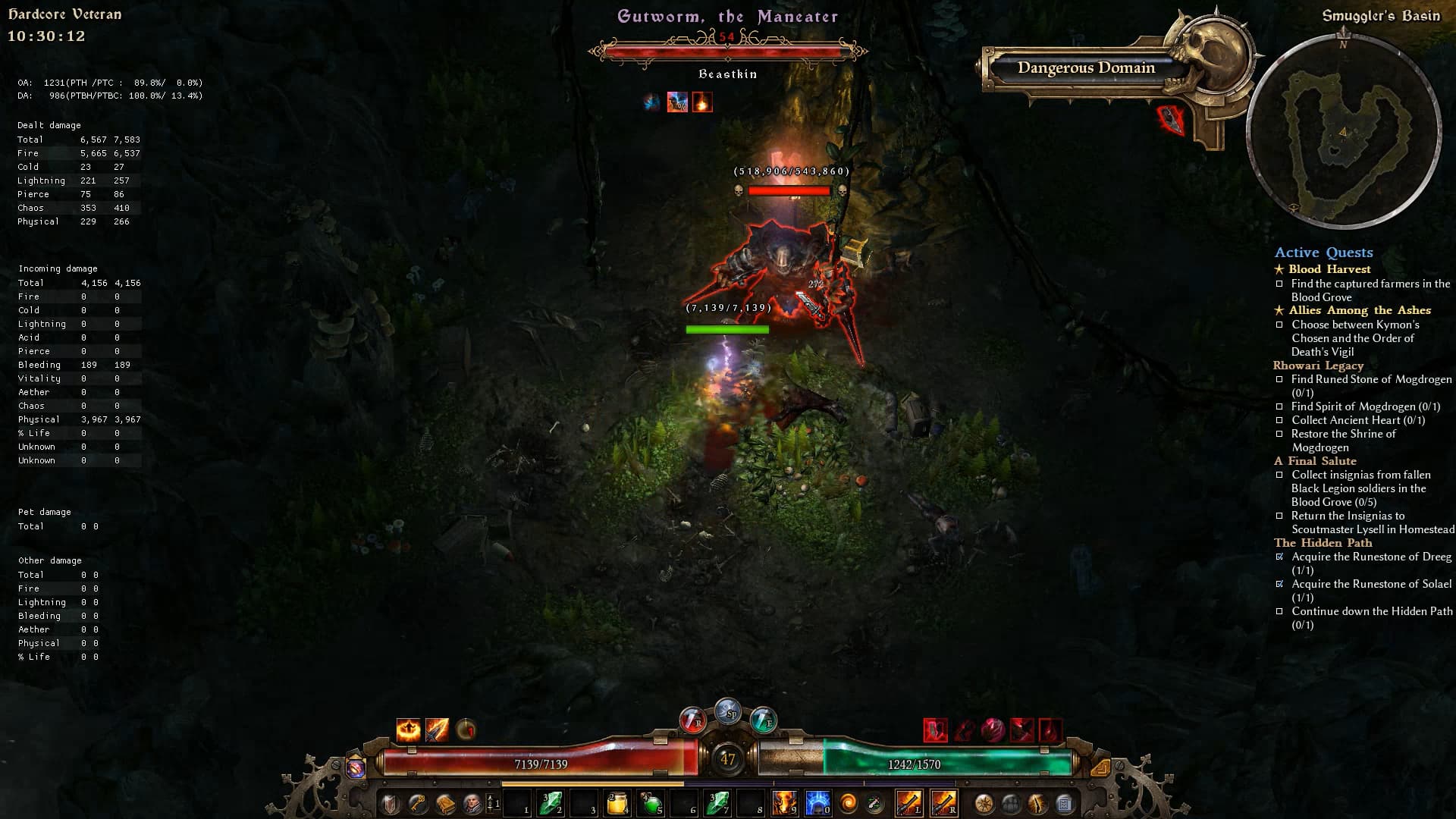
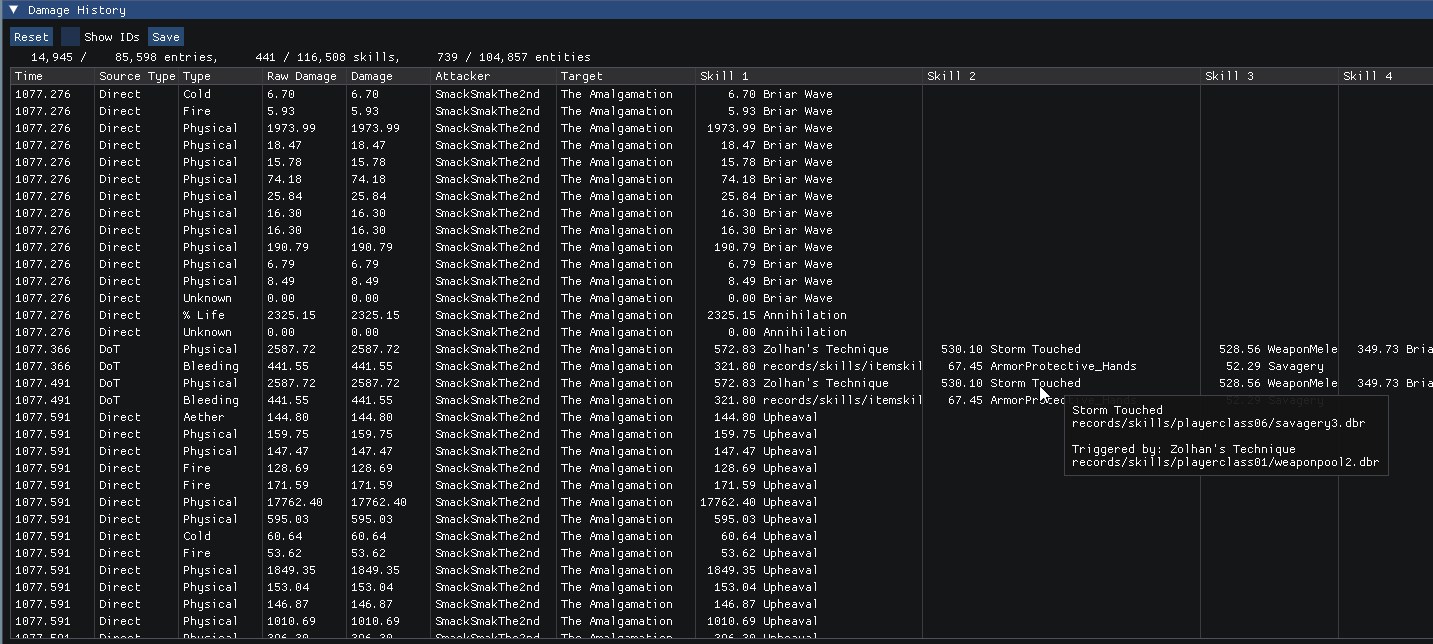
- Yes
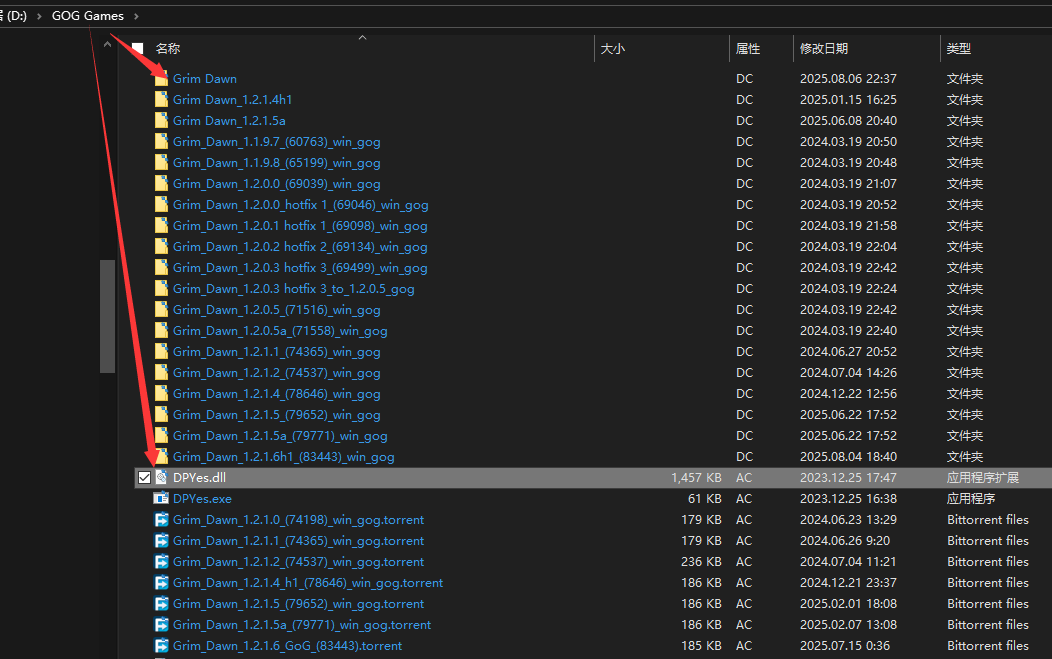
D:\GOG Games\Grim Dawn\DPYes.dll
D:\GOG Games\Grim Dawn\x64\winmm.dll
- I don’t know where to see the relevant output from DebugView.
D:\GOG Games\Grim Dawn\DPYes.dll
D:\GOG Games\Grim Dawn\x64\winmm.dll
Depending on how Grim Dawn is launched, D:\GOG Games\DPYes.dll could also be checked.
That is to say, only one of the following files should exist:
D:\GOG Games\DPYes.dllD:\GOG Games\Grim Dawn\DPYes.dllD:\GOG Games\Grim Dawn\x64\DPYes.dllThe check that into the parent directory was orgiinally covering the game being launched from within the x64 directory, with the Steam version this isn’t directly possible, but I wasn’t sure about the GOG version.
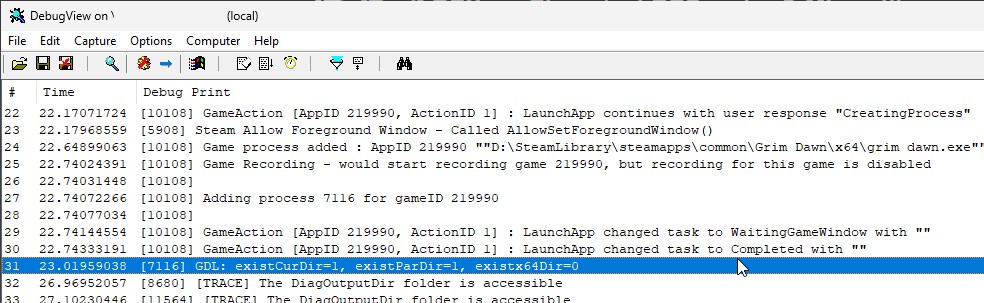
This sample log entry below can be interpreted as DPYes.dll was found in the current directory (typically, the Grim Dawn directory) and the parent directory, and not within the x64 subdirectory:
[7116] GDL: existCurDir=1, existParDir=1, existx64Dir=0
According to your suggestion, I found that there are indeed two DPYes.dll files. Deleting D:\GOG Games\DPYes.dll allowed me to launch the game normally.  Thank you.
Hello. Thanks to you, I’m enjoying the game.
I have a question.
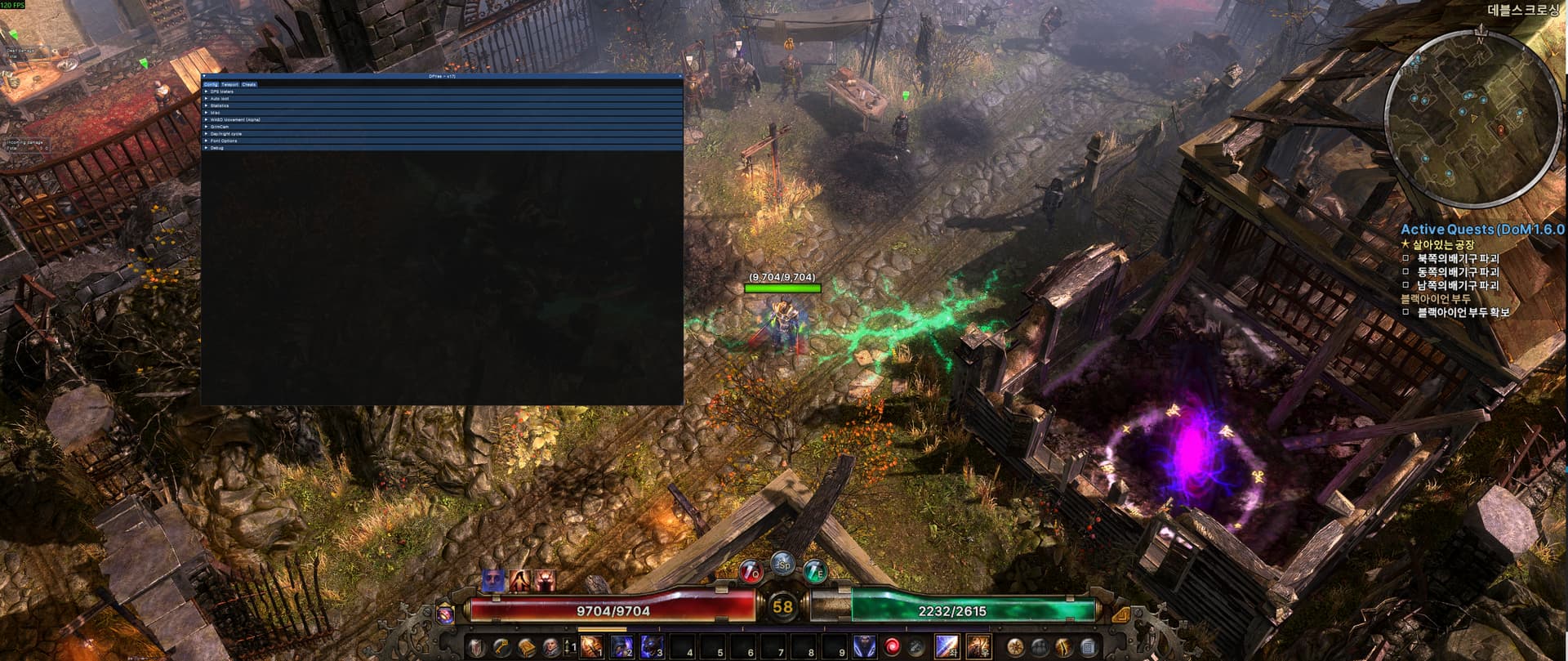
I’m currently using a resolution of 5120 x 2160, but when I use DPYES, it looks incredibly small.
Is there a way to adjust the size of DPYES?
How do you get auto launch or normal installation to work when you have the game launching with the /basemods and 2 combined mod? auto launch doesnt seem to load dpyes, where launching through dpyes exe doesnt load my mod.
Hello!
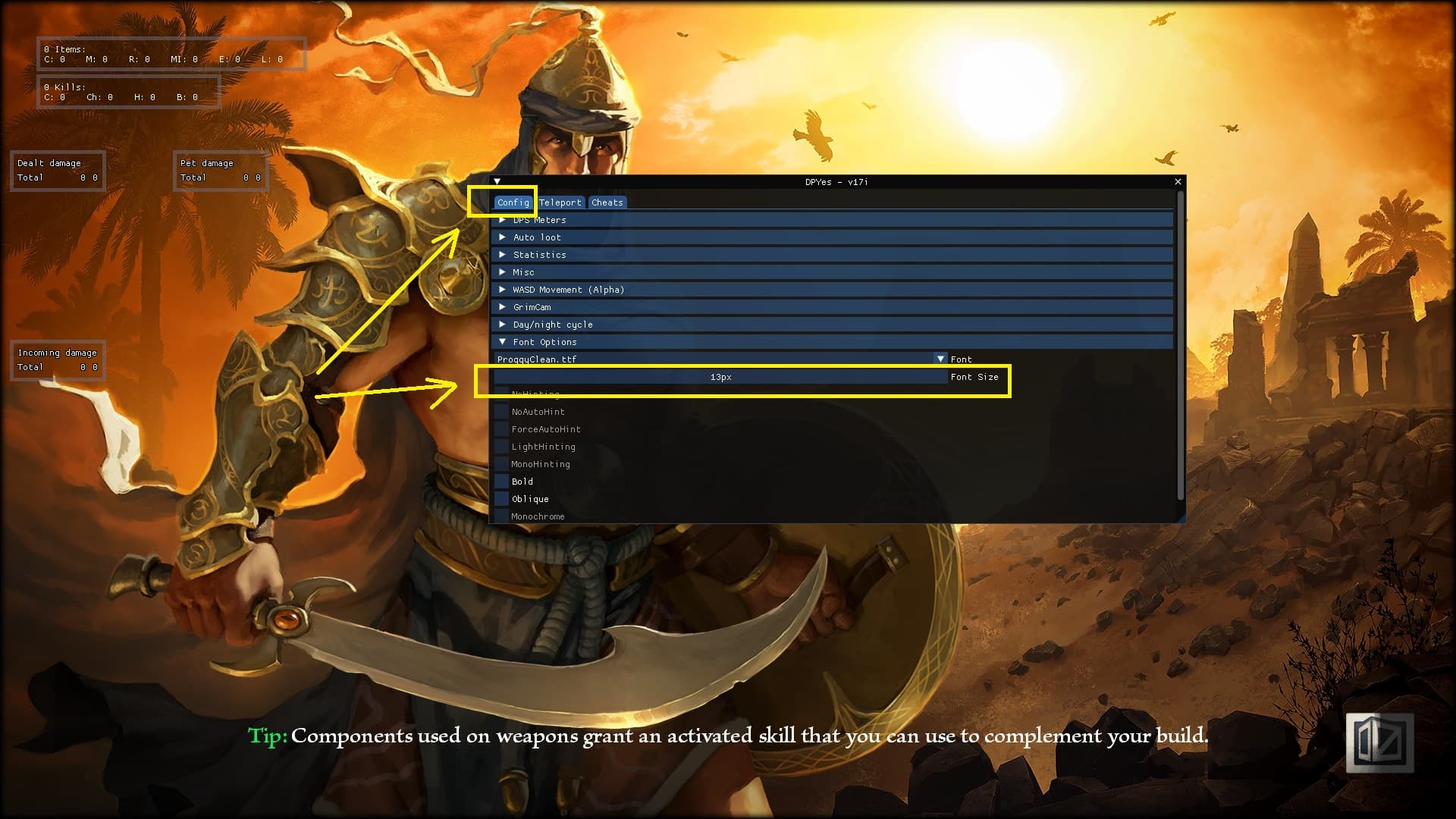
Press F5 and Go to Config Tab, And Font Options (penultimate option in the main list). After 2.line Font Size, default me is 13x, if u set to 26x scaled everything to double.
Or Find the DPYes.ini file. Open with notepad, find this line: fontSize=13 and type
value if u want (13 is default me in 1920x1280), if u set to 26, everything is doubled in size.) Maybe u need palying with the numbers, but if u math is right u can get your own scaling.
Screen for the help, i hope this helping u.
Does this still work correctly?
I have it running but the DPS meter does not seem to activate at all.
I can open the menu with F5, and things like the loot filter and auto pickup work but no matter what I do I can’t get an actual DPS number to display anywhere.
When using auto launch, is Steam (or GoG) launching the x64/64bit version of Grim Dawn?
DPYes can not be loaded in the 32bit version.
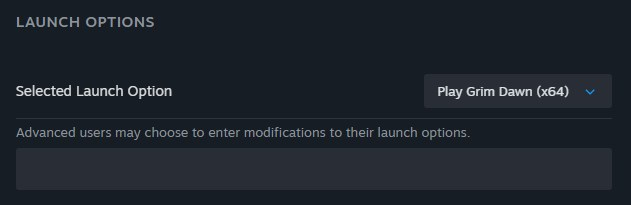
@killkrazed
Are any DPS meter activated and visible on screen at all? The position can be altered in the config window if it has somehow gone off screen.
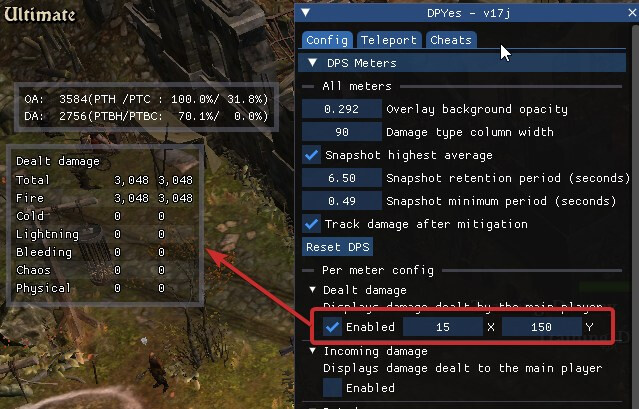
Thanks.
For some reason it was off screen, it snapped to the correct location instantly when I adjusted the x value slightly.
Are the before mitigation numbers what you expect to see?
This can be seen by unchecking Track damage after mitigation in the config window.
no.
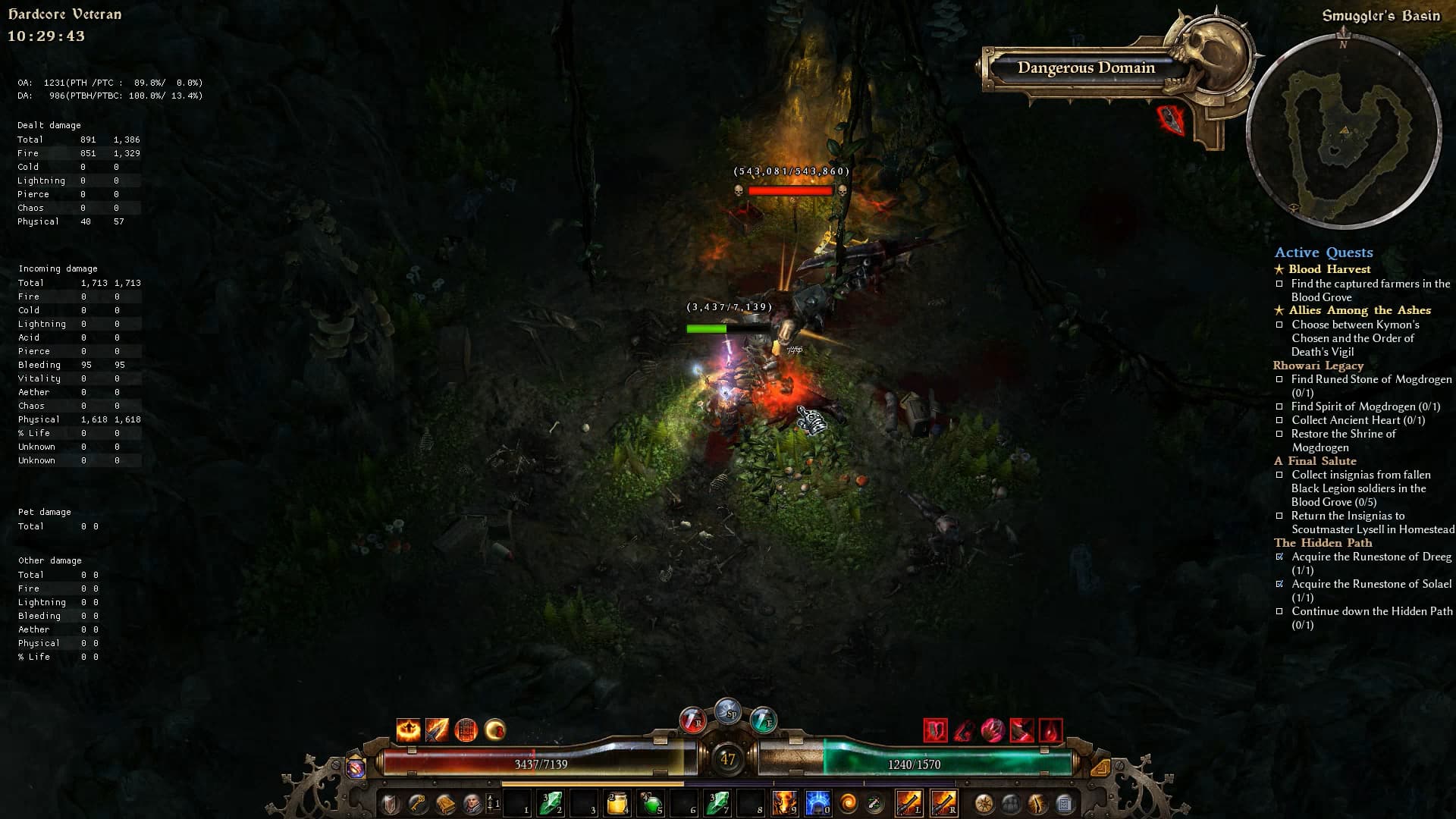
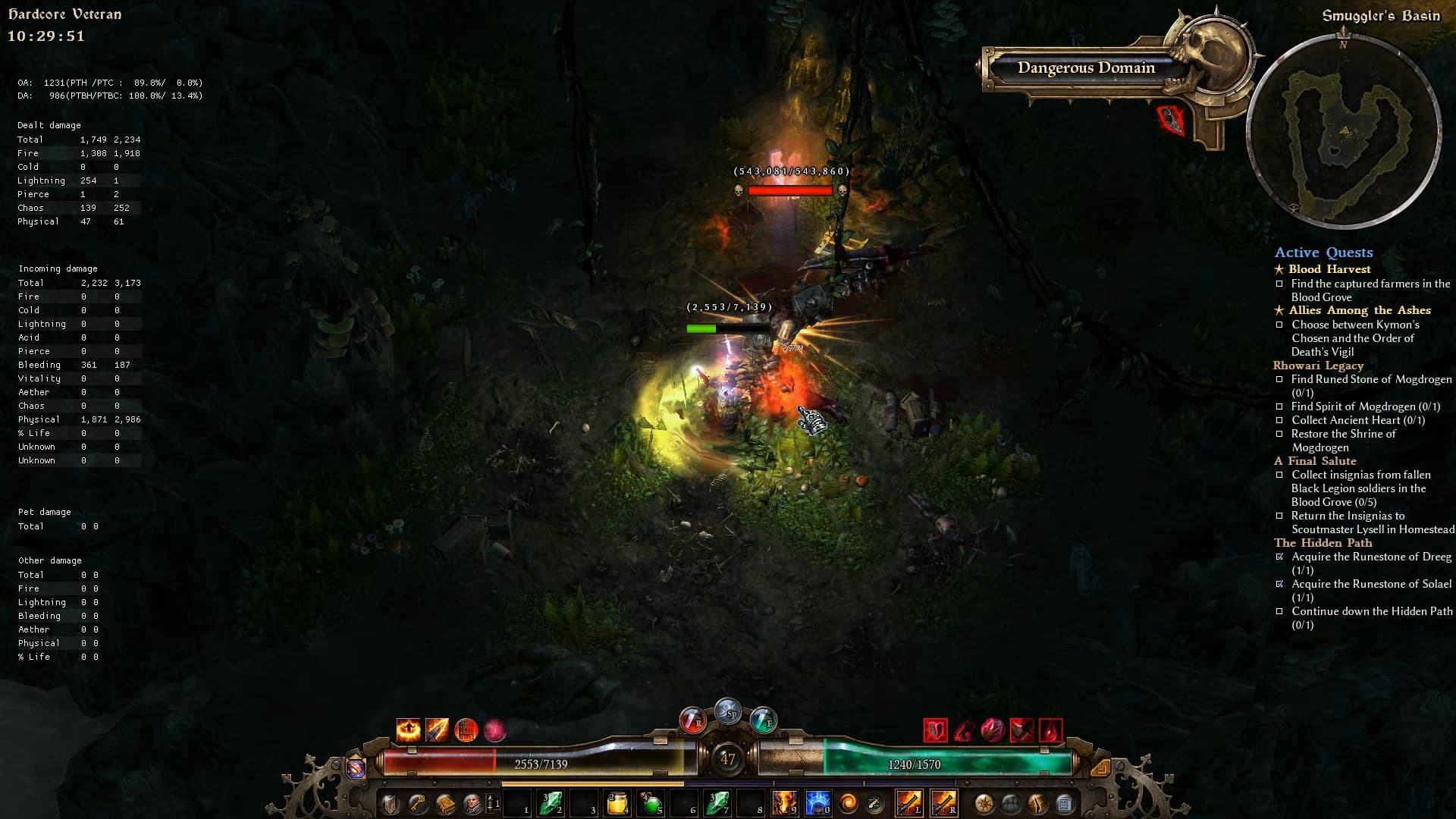
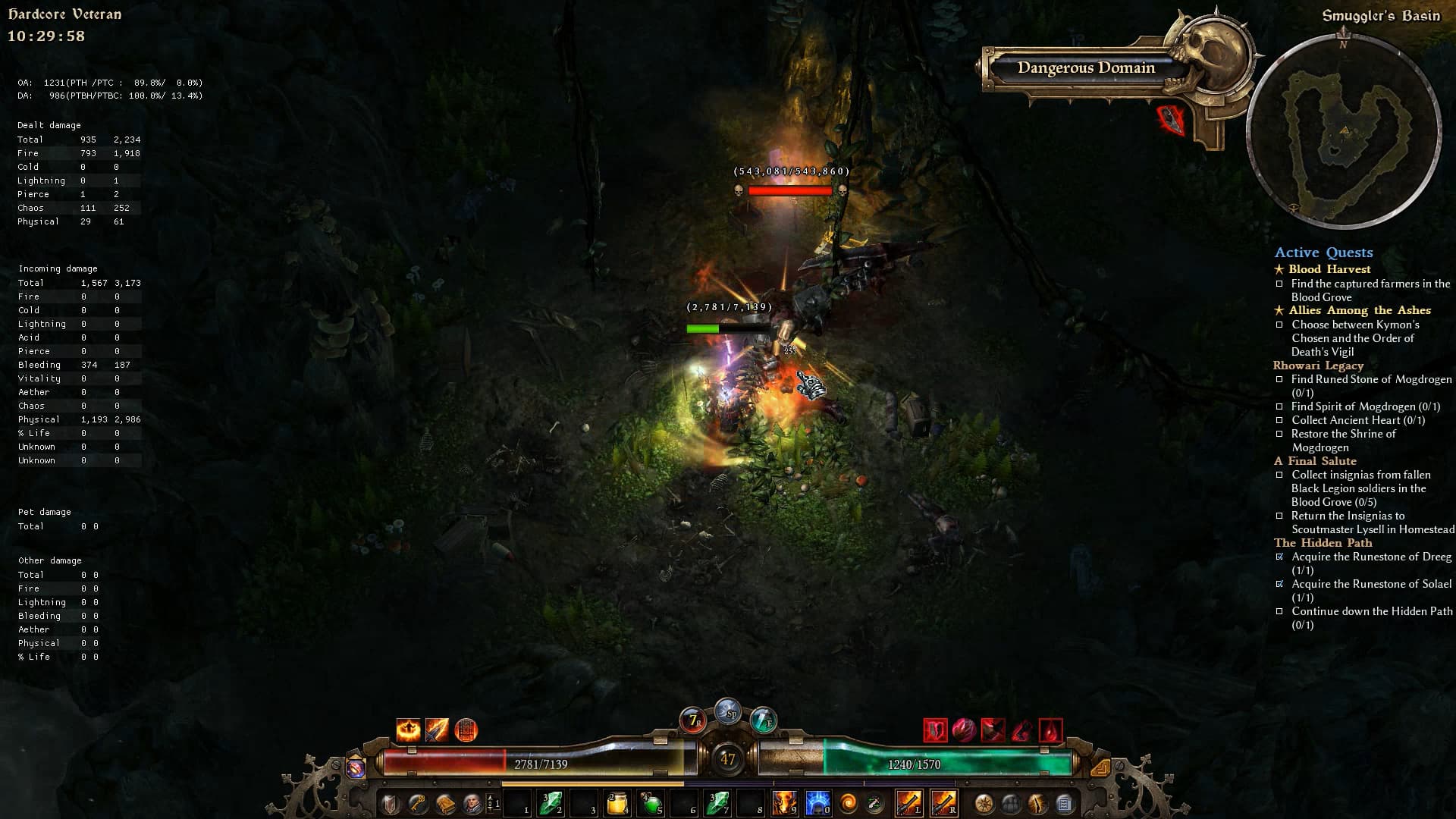
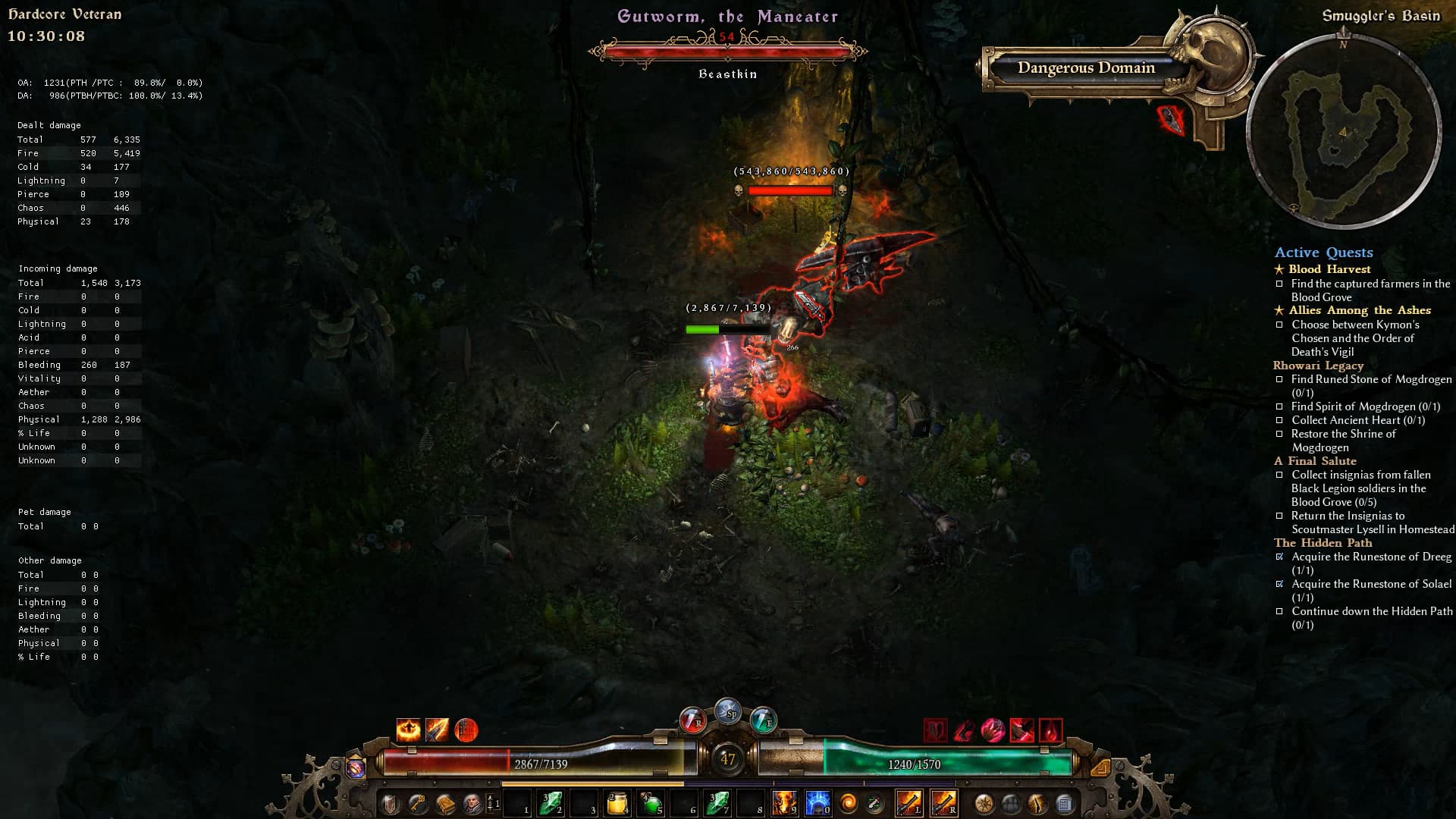
on screenshots u can see one hit damage from full hp.
it is damage dealt after all defensive mechanics.
so after 1 super hit i loose more then half hp, but DPYes doesn’t show it.
DPYes displays DPS, i.e., damage over time, not instantaneous damage or highest recent hit.
Speaking of… Is it possible to track overall damage taken?
Say, i would a run through a port valbury and at the end of the run i would notice of highest damage types i took. Then naturally i would work on mitigating this damage, getting more resists and whatnot.
It is feasible? Is it needed? Is it worth doing?
anyway, if i take 4500 per 1 sec - it should be shown. otherwise it is not a dps - damage per second.
DPYes 17k changes:
dpyes_damage_history.json)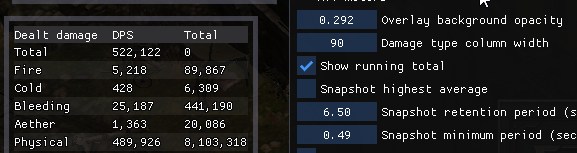
Damage is averaged over up to ~5 seconds to reduce the spikiness.
This is good about dealt damage but about incoming damage
there is all sense in that 1 spike.
Bc when u were hit for a half HP, then it is alarm bc if u get 2 hits like this u’ll die.
And when u were hit for more than half HP in fight with many enemies, then it means u got lucky, otherwise u were dead, bc u could get many hits like that at the same time.
So it is important to monitor real incoming damage in fight, but u cant look at damage counter all time and here comes “highest” incoming damage per 1 second.
But when u take a hit for ~60-70%HP then it is a critical alarm, bc if u take a hit like that while u are not on full hp, u’ll be dead.
And if u have taken so big hit but didn’t notice then u can check the highest incoming damage.
But if it’s average, u can’t see the real damage and u think like i’m safe, bc i have different cirquit brakers and then u are dead bc of oneshot.
So if u see damage income for 30-40% HP and more in 1 sec it is time to get back and grind for more defense or time to check if u know what u r doing (boss tactics).
Getting back to using the latest version of this tool after a few months away from the game; I just want to say thank you to Sleepless for all the continued development put into this. Beyond the QOL, it is a vital end-game tool to get the information I need to truly min-max my characters. In particular the DA / OA display is a life-saver!
Excellent stuff. Thank you again!
Hey, first of all thanks a lot for making and updating this tool, i used it a lot a few months ago.
I recently started playing again and updated the tool to the latest version (17k) and i discovered an issue that i’m not sure was present in the older version i was using (idk which it was).
Setting up specific affixes on the loot filter works fine ONLY for the first character upon launch. Exiting to menu and relogging on any character breaks this and makes you only able to select any, magic or rare.
Didn’t test if only the UI breaks or the filter stops working entirely (or at least the affixes part).
*Clean install, no mods, tried removing rainbowfilter (still happens).